 This works in every desktop version of Premiere.

Friday, March 28, 2008
Adobe Premiere Pro Shortcut Of The Week
The letter "v" selects the most often used tool in Premiere, the Selection tool. (It's also the default tool when the application is launched.)
 This works in every desktop version of Premiere.
This works in every desktop version of Premiere.


Tuesday, March 25, 2008
Premiere Pro Is HDV-Friendly
While Premiere Pro's AVCHD shortcomings are apparent, Adobe's editing application gets high marks for being among the few that will edit HDV files in their native format. As Tim Siglin points out in eventDV's The Amen Corner:
"Having done work in Premiere in native HDV, I assumed I would be able to grab any of the HDV editing tools, capture the footage, and transcode the files on any platform. I was wrong."
Keep in mind that HD editing requires a very powerful computer which means more money. To learn more, check out the HDV Handbook at Videoguys.com
"Having done work in Premiere in native HDV, I assumed I would be able to grab any of the HDV editing tools, capture the footage, and transcode the files on any platform. I was wrong."

Keep in mind that HD editing requires a very powerful computer which means more money. To learn more, check out the HDV Handbook at Videoguys.com
Wednesday, March 19, 2008
AVCHD Brouhaha
The AVCHD format has been widely adopted by manufacturers, both for consumer and prosumer cameras alike. Unfortunately Adobe Premiere Pro and Premiere Elements don't yet support the format. As one might expect this has generated considerable consternation among Adobe's user base. You can read some of that here.

While it's important to add that Adobe has introduced a workaround, essentially a $450 plug-in from MainConcept, there are Windows-based nonlinear editing programs that already support AVCHD. The two most prominent are Sony Vegas 8.0 and Pinnacle Studio.
No doubt Adobe is behind the eight ball on this one. I suggest that until Premiere Pro and Elements support AVCHD, Adobe should provide the plug-in at no charge to its CS3 customers and free upgrades for CS3 and Elements 4.0 users when the application finally supports the codec.

While it's important to add that Adobe has introduced a workaround, essentially a $450 plug-in from MainConcept, there are Windows-based nonlinear editing programs that already support AVCHD. The two most prominent are Sony Vegas 8.0 and Pinnacle Studio.
No doubt Adobe is behind the eight ball on this one. I suggest that until Premiere Pro and Elements support AVCHD, Adobe should provide the plug-in at no charge to its CS3 customers and free upgrades for CS3 and Elements 4.0 users when the application finally supports the codec.
Adobe Premiere Pro Keyboard Shortcut of the Week
Technically this isn't a keyboard shortcut but it is a technique that can save oodles of time, so here goes.
It's quite common to apply video filter, audio filters or make other adjustments to a clip in the timeline. And if other clips in your timeline were taken from the same source, one often needs to apply identical filters and settings to those clips too. However, manually applying each of those settings is tedious.
Here's a way to copy the attributes of a clip and apply to any other clip in the timeline.
First, right-click on the clip that has all of the filters and adjustments applied to it and select "Copy". Then right-click on an unaltered clip in the timeline and select "Paste Attributes".
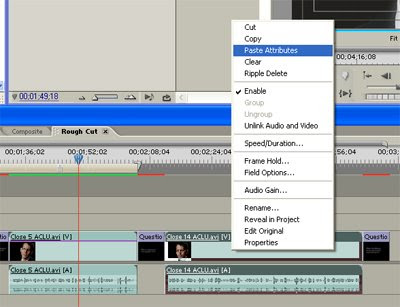
All of the filters and settings copied from the original clip are now applied your target clip.
It's quite common to apply video filter, audio filters or make other adjustments to a clip in the timeline. And if other clips in your timeline were taken from the same source, one often needs to apply identical filters and settings to those clips too. However, manually applying each of those settings is tedious.
Here's a way to copy the attributes of a clip and apply to any other clip in the timeline.
First, right-click on the clip that has all of the filters and adjustments applied to it and select "Copy". Then right-click on an unaltered clip in the timeline and select "Paste Attributes".

All of the filters and settings copied from the original clip are now applied your target clip.
Thursday, March 6, 2008
Free 3D Modeling and Animation With Blender
While I always find it heartening to see open source developers undermine the predatory lock-in business strategies of commercial software companies, more than a few open source applications are lacking in features and stability.
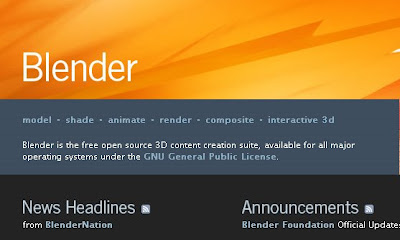
Well it's safe to say that Blender is an exception. Blender is the free open source 3D content creation suite, available for all major operating systems. It is a complete suite of 3D modeling, rendering and animation applications which all function within a well-designed user interface. But wait - that's not all. Blender.org also offers free videos and online tutorials to walk you through the entire suite of programs.
Here's a very short 3D animation I created after a couple of hours of noodling. The model or "mesh" was downloaded from Star Trek: Blender.
3D modeling and animation has a steep learning curve. With Blender, you have the opportunity to develop those skills without having to drop hundreds or even thousands of dollars on a comparable 3D application suite.

Well it's safe to say that Blender is an exception. Blender is the free open source 3D content creation suite, available for all major operating systems. It is a complete suite of 3D modeling, rendering and animation applications which all function within a well-designed user interface. But wait - that's not all. Blender.org also offers free videos and online tutorials to walk you through the entire suite of programs.
Here's a very short 3D animation I created after a couple of hours of noodling. The model or "mesh" was downloaded from Star Trek: Blender.

3D modeling and animation has a steep learning curve. With Blender, you have the opportunity to develop those skills without having to drop hundreds or even thousands of dollars on a comparable 3D application suite.
Tuesday, March 4, 2008
Customize Your Shortcuts
In Premiere Pro and Premiere Elements, you can add to or customize the keyboard shortcuts you use. To do this, go to the menu and select Edit > Keyboard Customization...
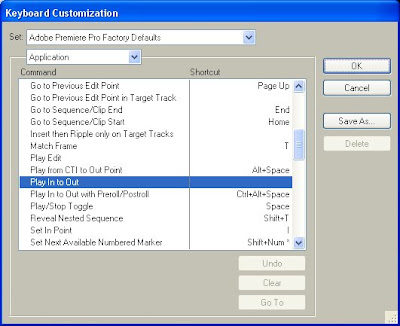
Every keyboard shortcut is identified there. Notice that if no shortcut is listed in the right column, then that function lacks a keyboard alternative. However, if you find an application function you use a lot and would like to add a shortcut, you can do that too.
For instance, I find that I often like to play clips or my timeline from the In point to the Out point. However, there is no shortcut in the default settings.
To do this, identify the function in the customization window and click in the blank space of the adjacent right column until a cursor appears. (I've found that initially, you have to click in the space, wait a second and then click again.)
Now enter your preferred keyboard shortcut. This may be obvious to some, but you need to enter the actual keyboard shortcut in the indicated cell. For example, if your shortcut includes the space bar, don't type the word, "SPACE BAR". Instead, press the space bar.
Now hit "Enter". Click on the "Save As" button and name your customized settings. Now you're ready to go.
I chose "Shift+Space" as my shortcut for play In point to Out point. Note that if you try to apply a shortcut that's already assigned, Premiere will ask whether you want to reassign the shortcut or undo and select another.

Every keyboard shortcut is identified there. Notice that if no shortcut is listed in the right column, then that function lacks a keyboard alternative. However, if you find an application function you use a lot and would like to add a shortcut, you can do that too.
For instance, I find that I often like to play clips or my timeline from the In point to the Out point. However, there is no shortcut in the default settings.
To do this, identify the function in the customization window and click in the blank space of the adjacent right column until a cursor appears. (I've found that initially, you have to click in the space, wait a second and then click again.)
Now enter your preferred keyboard shortcut. This may be obvious to some, but you need to enter the actual keyboard shortcut in the indicated cell. For example, if your shortcut includes the space bar, don't type the word, "SPACE BAR". Instead, press the space bar.
Now hit "Enter". Click on the "Save As" button and name your customized settings. Now you're ready to go.
I chose "Shift+Space" as my shortcut for play In point to Out point. Note that if you try to apply a shortcut that's already assigned, Premiere will ask whether you want to reassign the shortcut or undo and select another.
Thursday, February 28, 2008
Free After Effects Tutorials
I won't spend a lot of time on motion graphics software because they tend to be a bit beyond the reach of a novice video maker. (According to Wikipedia, "Motion graphics are graphics that use video and/or animation technology to create the illusion of motion or a transforming appearance.")
However, while Adobe After Effects is the most popular program available, the ability to animate still graphics has crept into most non-linear editing programs.
Here's a great After Effects tutorial web site - rhys-works.com. The site was created by Rhys Enniks, a native of the UK.

In addition to being a gifted motion graphics artist, Rhys also has a knack for presenting complex technical information in an easy-to-understand way. And the fact that he's only 20 years old make his web site and work all the more impressive.
However, while Adobe After Effects is the most popular program available, the ability to animate still graphics has crept into most non-linear editing programs.
Here's a great After Effects tutorial web site - rhys-works.com. The site was created by Rhys Enniks, a native of the UK.

In addition to being a gifted motion graphics artist, Rhys also has a knack for presenting complex technical information in an easy-to-understand way. And the fact that he's only 20 years old make his web site and work all the more impressive.
Subscribe to:
Posts (Atom)